I built this collection guide/walkthrough as:
- A reinforcement of knowledge from my GCFE course
- A future reference for myself and others on processing of Windows evidence from disk images. All tools seen here are free for download from vendor websites.
This is just my personal method — if things could be improved upon I would love to hear from you on X. (Handle on About Page)
Disclaimer
Windows OS is constantly changing with weekly patches and major version updates. Methods and techniques will need to be adapted over time. I will inevitably miss stuff — it is on the individual to validate current best practices.
Tools
- NirSoft Utilities and NirLauncher (for BrowsingHistoryView, BrowserDownloadsView, WinPrefetchView)
- Arsenal Image Mounter
- Registry Explorer (for analyzing registry hives like SYSTEM, NTUSER.DAT, AmCache.hve)
-
SANS GCFE Windows Forensics VM
(or similar forensic workstation setup)
- PECmd (for Prefetch analysis)
- SRUM-Dump (for SRUM analysis)
Scenario Overview
Now that we have collected the evidence and hashed originals and copies, we are ready for processing. Please see the first section of this writeup which covers the collection of the artifacts that will be referenced here.
Customer states that the user was terminated for selling company secrets. They have asked us to look for any evidence that might corroborate this charge.
**Admin Note** Two things were done on the image prior to capture:
- EXE download
- Suspicious Google searches
We are going to go over finding these two things. We will also cover some things that the OS did on reboot that could trip you up during an investigation. The goal of this writeup is to show a few common artifact locations and how you can investigate them from disk.
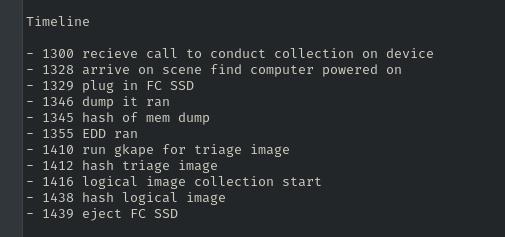
Note: The employee was caught selling company IP and pulled away from his computer while still using it. We need to deconflict our actions from his, as collection was done on-scene from his account. Times are in local time, but most evidence is in UTC (GMT +10).
Preparation Steps
- Verify Hashes of Files: Verify integrity of memory capture, triage image, and logical image capture. Use sha256sum command to pull hashes and verify against the initial collection hashes. All hashes should match to ensure no tampering.
- Make a Copy of Originals to Work From: Create a folder for originals and a working folder for processing to avoid modifying source files.
- Move Files to Processing Machine: Use a dedicated forensic workstation, such as the SANS GCFE Windows Forensics VM.
- Mount Images: Mount the logical image (.E01) with Arsenal Image Mounter. For the triage image, navigate to the VHDX in the case folder and double-click to mount it to the local file system (e.g., under KAPE (2025*))



Additional Info: Hash verification is crucial to maintain chain of custody. Any mismatch could indicate corruption or alteration, invalidating the evidence in court. In the image, we see commands like sha256sum on files like COMEANDINDME-20251129-233712.dmp, case1.vhdx, and logical.E01, with matching hashes.
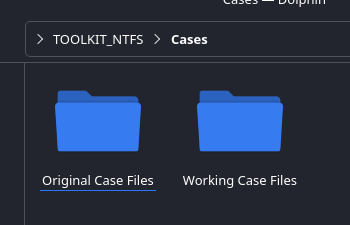
Additional Info: The image shows 'TOOLKIT NTFS > Cases' with 'Original Case Files' and 'Working Case Files' folders.
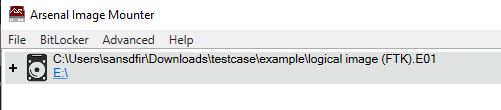
Additional Info: The image shows Arsenal Image Mounter with the .E01 mounted as E:, and Explorer with KAPE VHDX mounted as F:, displaying system volume info and other files.
Now we have: Logical = E: drive, Triage = F: drive.
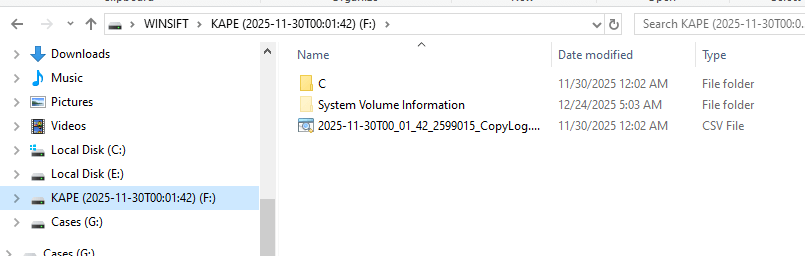
Additional Info: The image confirms the drive letters and introduces the history analysis section with NirLauncher.
Browser History Analysis
First thing we want to look at is the browser history. We know he was using Edge when we showed up, so we start by examining Chromium-based artifacts for history. Use NirSoft utilities and NirLauncher to run BrowsingHistoryView.
Open the tool and click on Advanced Options to select time frame and evidence to parse. Use the local drive user folder (e.g., E:\Users) to pull data.
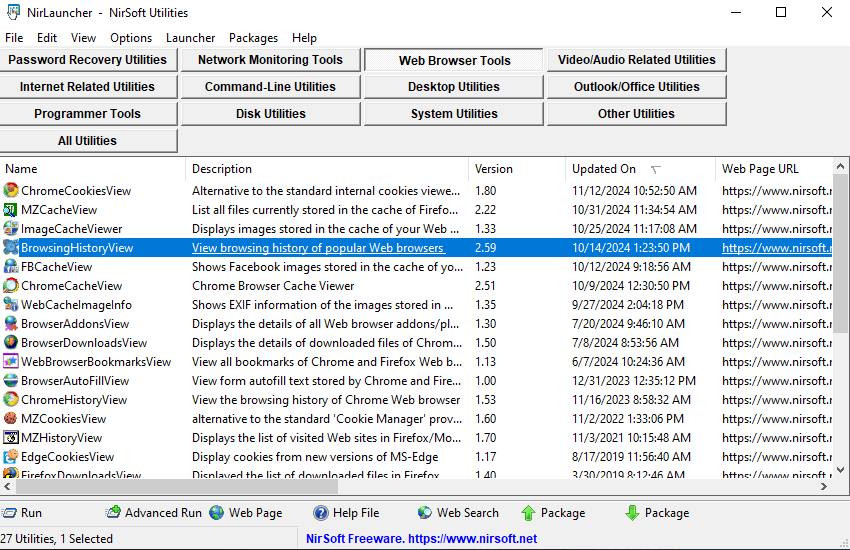
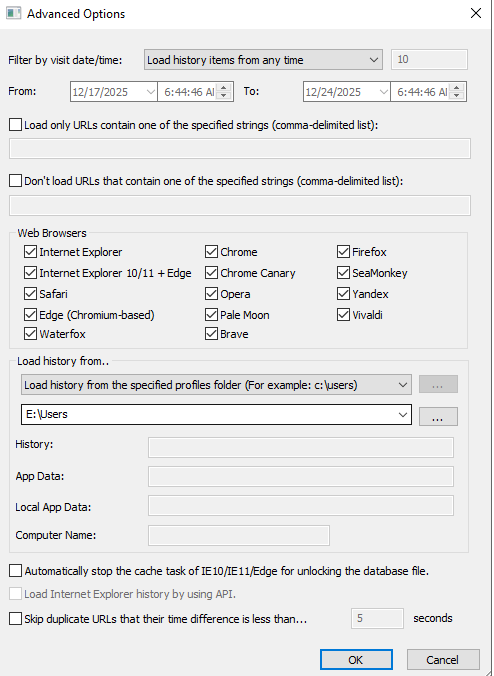
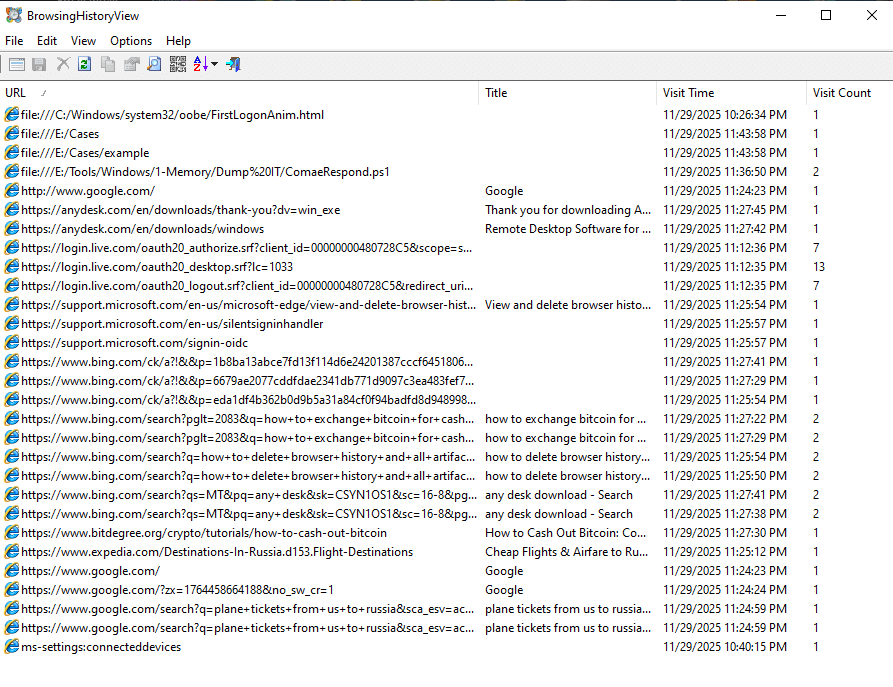
Here we see a list of URLs visited on the device.
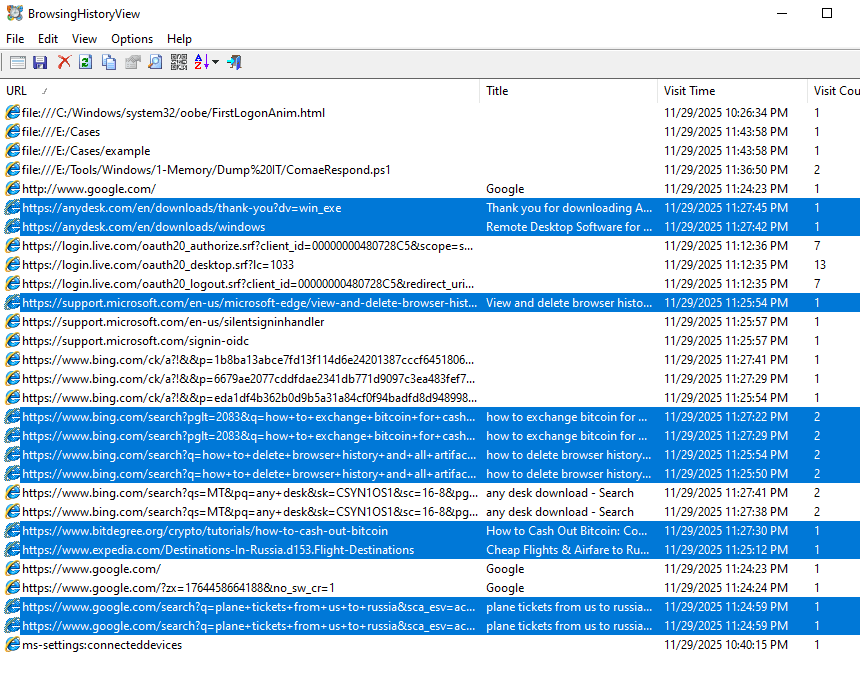
We can see several suspect URLs visited by the user, including an RMM tool download page ("AnyDesk"), anti-forensics methods Google searches, crypto currency exchange instructions, and plane tickets to Russia from the US. None of this is direct evidence of crime but all useful to prosecutors.
Additional Info: Anti-forensics searches suggest intent to cover tracks, which can corroborate malicious activity. Crypto exchanges might indicate payment for stolen IP, and flight searches could imply flight risk. The image lists URLs like anydesk.com/en/downloads/windows, searches for deleting browser history, bitcoin exchange, and flights from US to Russia.
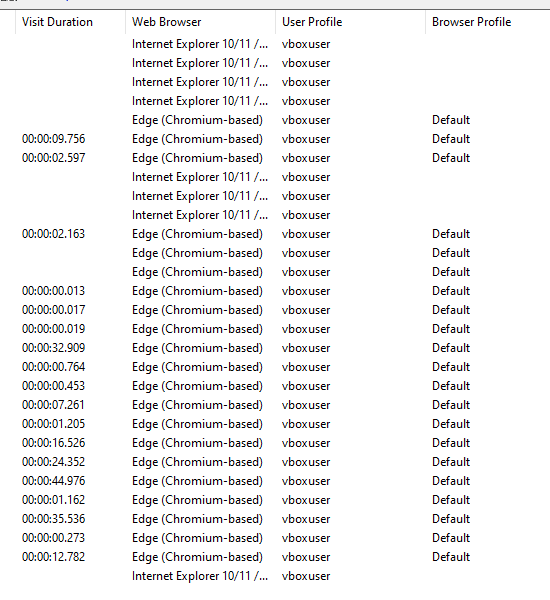
We also note the user profile and visit duration for direct attribution—it was the "vboxuser" profile and shows how long he was on each site.
Downloads Analysis
From our previous discovery, we see that he visited the AnyDesk download page, but now we need to confirm if anything was actually downloaded. He visited the page at 11:27:45 Local.
Use NirSoft BrowserDownloadsView from NirSoft utilities to examine these artifacts. Use Advanced Options again to select the user directory as before.

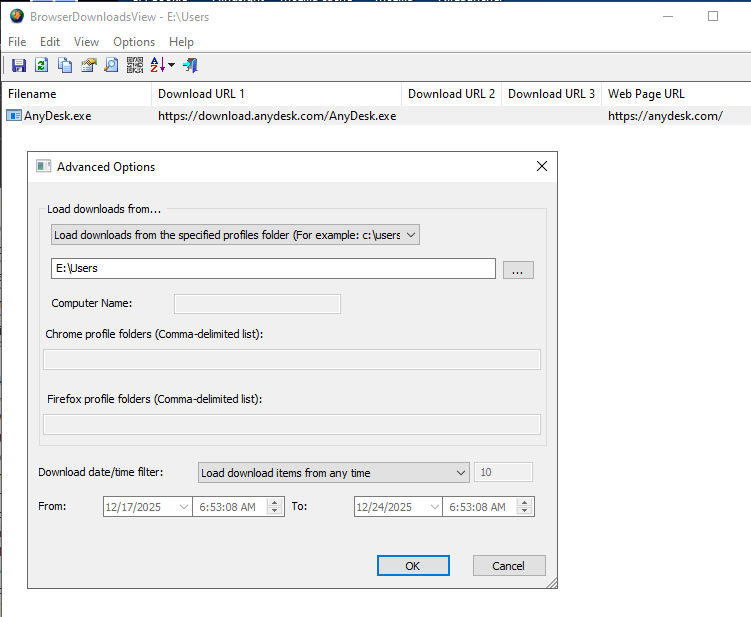
We see here that there is one download that did occur at 11:27 Local time, which directly corresponds with history, and that it succeeded. With this, we can confirm that he did indeed download the RMM software about 30 minutes before the computer was seized.


Here we can see the directory it was downloaded to (e.g., C:\Users\vboxuser\Downloads\AnyDesk.exe).
Additional Info: Download artifacts include file name AnyDesk.exe, URL https://download.anydesk.com/AnyDesk.exe, size 7.84 MB, speed 1052.8 KiB/sec, status Succeeded. This confirms the file was fully transferred and could have been executed if not interrupted. The image shows the tool interface with these details.
Application Execution Analysis
Now we want to see if he was able to execute the software and give someone remote access. We use Registry Explorer to run this down. We are specifically looking for application execution or interaction. We can see this a couple of ways.
In Registry Explorer, open the SYSTEM and NTUSER.DAT hives. Clean them when prompted with the transaction logs.
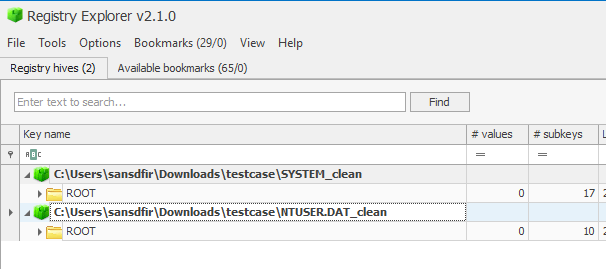
Additional Info: The image shows Registry Explorer with SYSTEM.clean and NTUSER.DAT.clean loaded.
BAM (Background Activity Moderator)
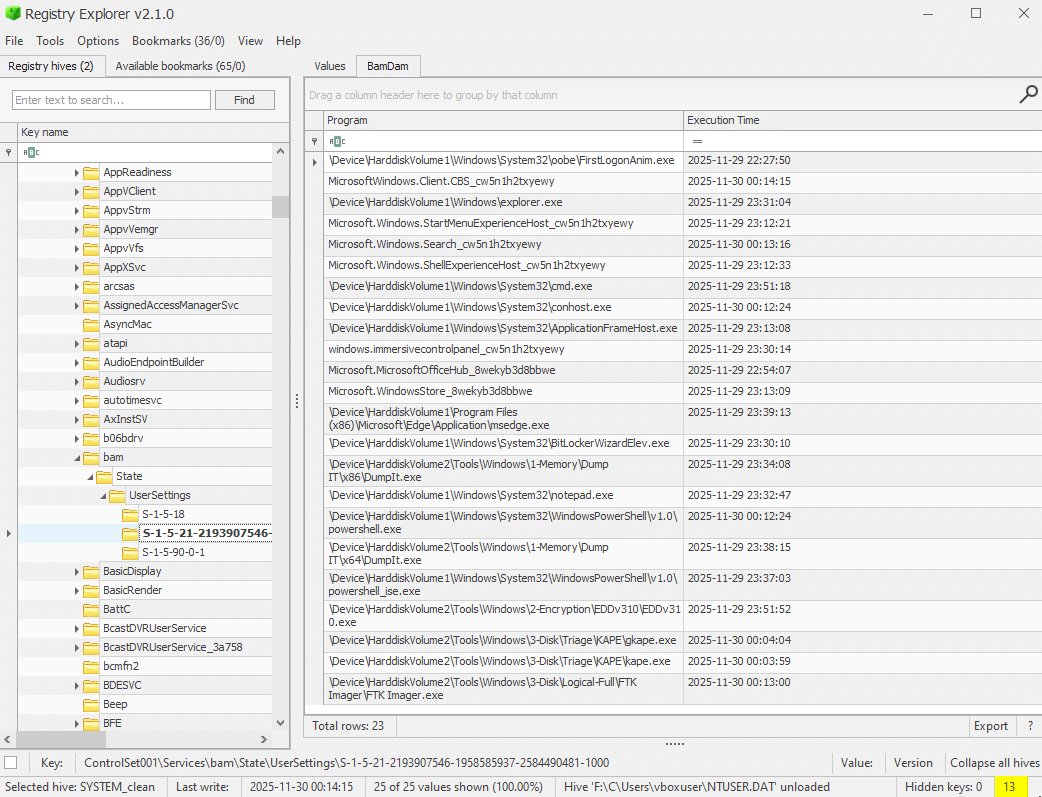
First up, explore the Background Activity Moderator (BAM), designed to control the activity of background applications. We want to see if maybe it was started, closed, and running in the background.
Subkey location: ROOT\ControlSet001\Services\bam\State\UserSettings\S-1-5-21-... (remember, the key is the SID for the user account).

Here we only have one user on the device, so it's easy. Otherwise, check Windows Registry Location of SIDs: HKEY_LOCAL_MACHINE\SOFTWARE\Microsoft\Windows NT\CurrentVersion\ProfileList. Each subkey starting with S-1-5 corresponds to a user profile. Match ProfileImagePath to identify the user SID.
Additional Info: BAM tracks execution times of background apps to manage power and performance. It's useful for detecting hidden or persistent processes, but in this case, it shows no AnyDesk activity—only IR tools from responders starting at 13:30 Local (23:30Z).
We find the user SID subkey and inspect to find full paths and times. We see where the incident responders ran several tools, but no activity for the AnyDesk RMM tool.
UserAssist
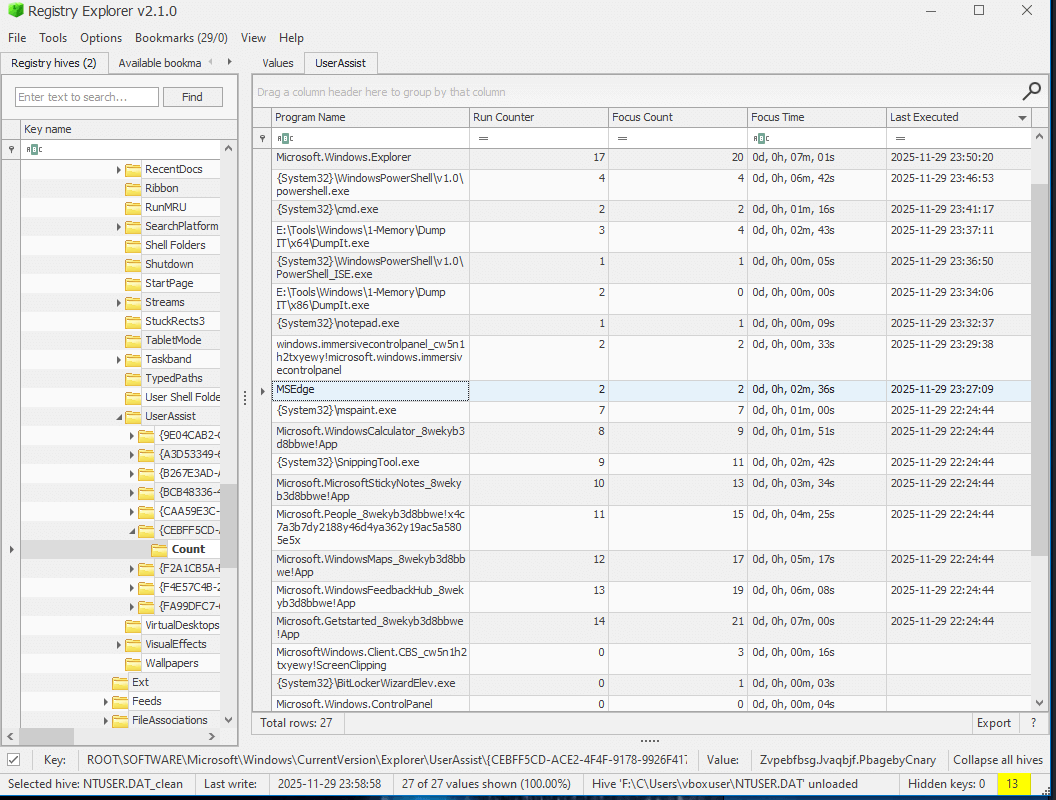
Next up, check UserAssist, which shows user-initiated application executions via GUI.
Here we see corresponding and matching evidence to the BAM artifacts with IR tools being used, but none others that really stick out. No AnyDesk execution.
Additional Info: UserAssist is stored in NTUSER.DAT under Software\Microsoft\Windows\CurrentVersion\Explorer\UserAssist. Entries are ROT13 encoded for obfuscation; decode them to reveal app paths and run counts/timestamps. The image shows executions like PowerShell, Memory Dump, but no AnyDesk.
Prefetch Files
Next, we can check prefetch files for AnyDesk or suspicious execution. None are found.
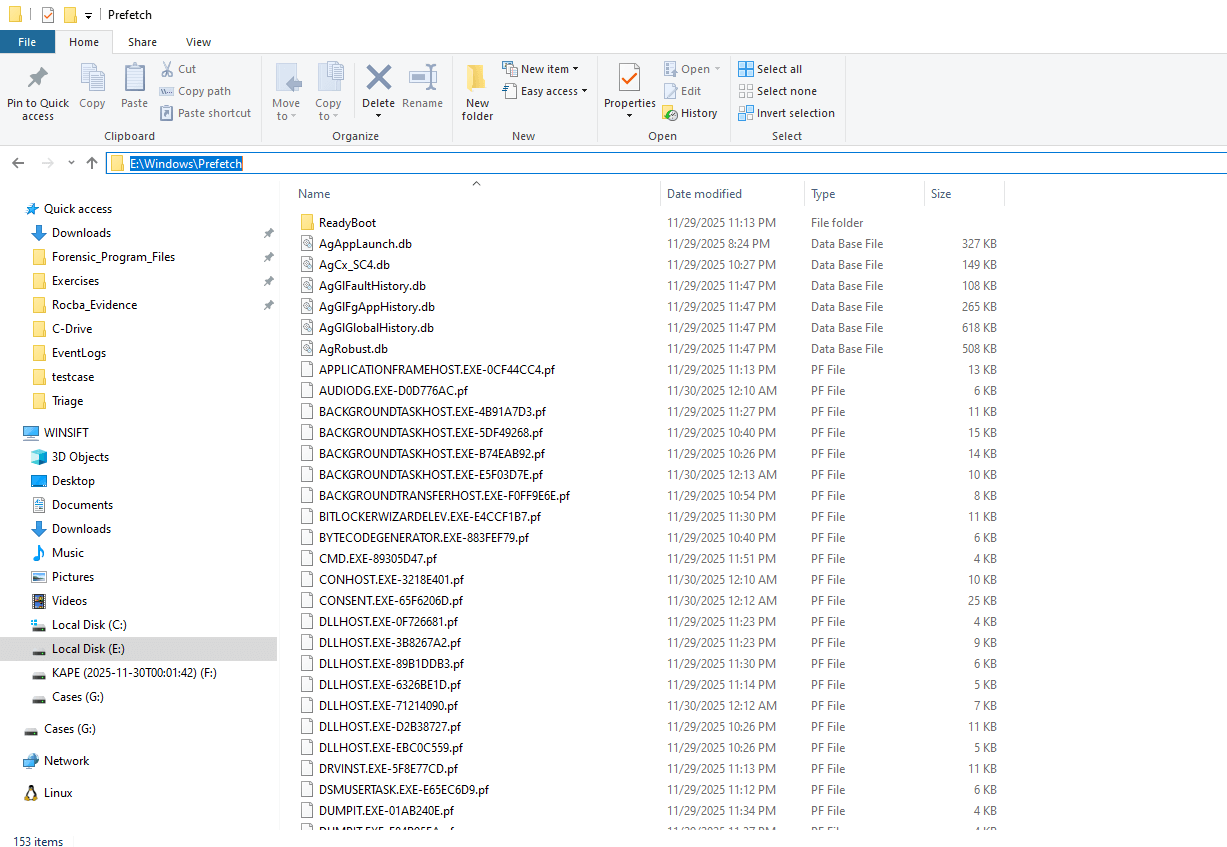
Location: C:\Windows\Prefetch\*.pf
Why: Definitive evidence of program execution. If AnyDesk.exe was run even once, a prefetch file (e.g., ANYDESK.EXE-*.pf) would be created with execution count and last run time.
Tool: PECmd or WinPrefetchView (NirSoft)
Impact: This would have been the smoking gun to confirm whether AnyDesk was actually launched.
Additional Info: The image shows prefetch files like AUDIODG.EXE, BACKGROUNDTRANSFERHOST.EXE, but no AnyDesk-related files, confirming no execution. Sorted by last executed time, shows recent IR tools.
ShimCache / AppCompatCache
Here if we sort by modified time we can see the apps that were executed. No signs of AnyDesk, just Edge and Windows OS apps.
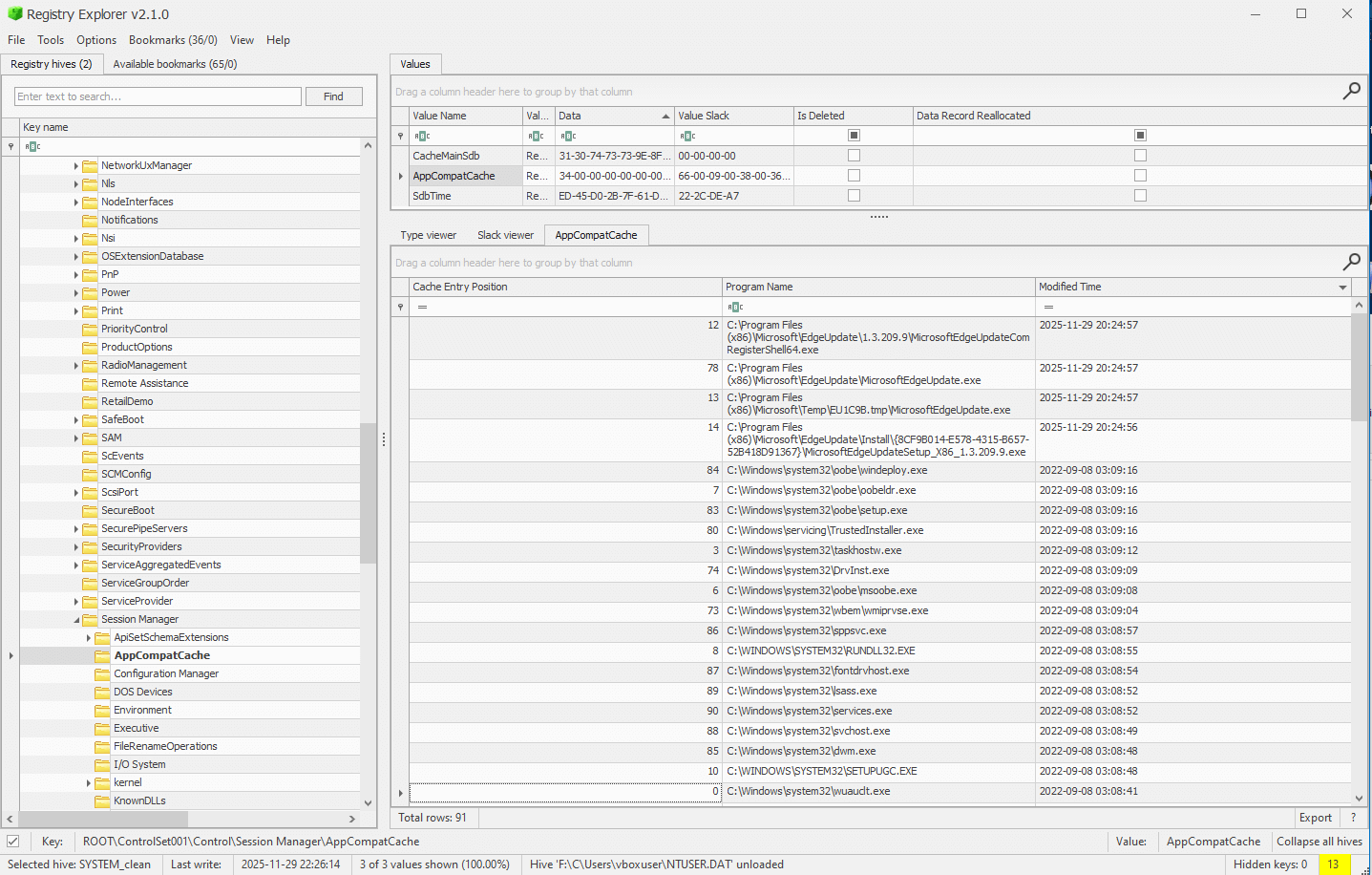
Location: Registry → SYSTEM\CurrentControlSet\Control\Session Manager\AppCompatCache
Why: Tracks every executable that has ever been run on the system (even if no prefetch). Excellent for confirming execution when prefetch is missing or disabled.
Tool: AppCompatCacheParser or Registry Explorer
Impact: Another strong execution indicator—would show AnyDesk path and last modified/execution timestamp.
Additional Info: The image shows entries like msedge.exe, explorer.exe, but no AnyDesk.exe. Sorted by modified time, recent entries are OS and browser related.
AmCache.hve
We can see there is no signs of AnyDesk in AmCache installed applications and installed application files.
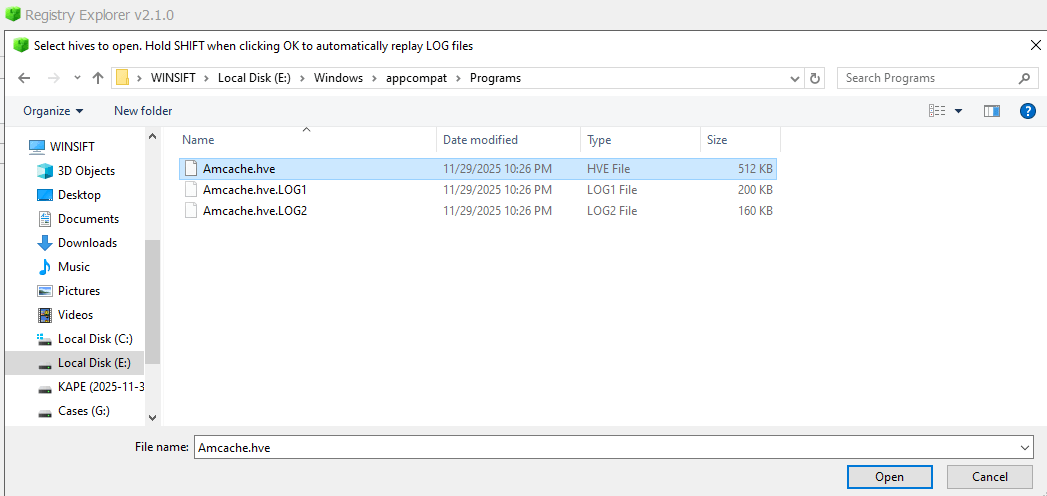
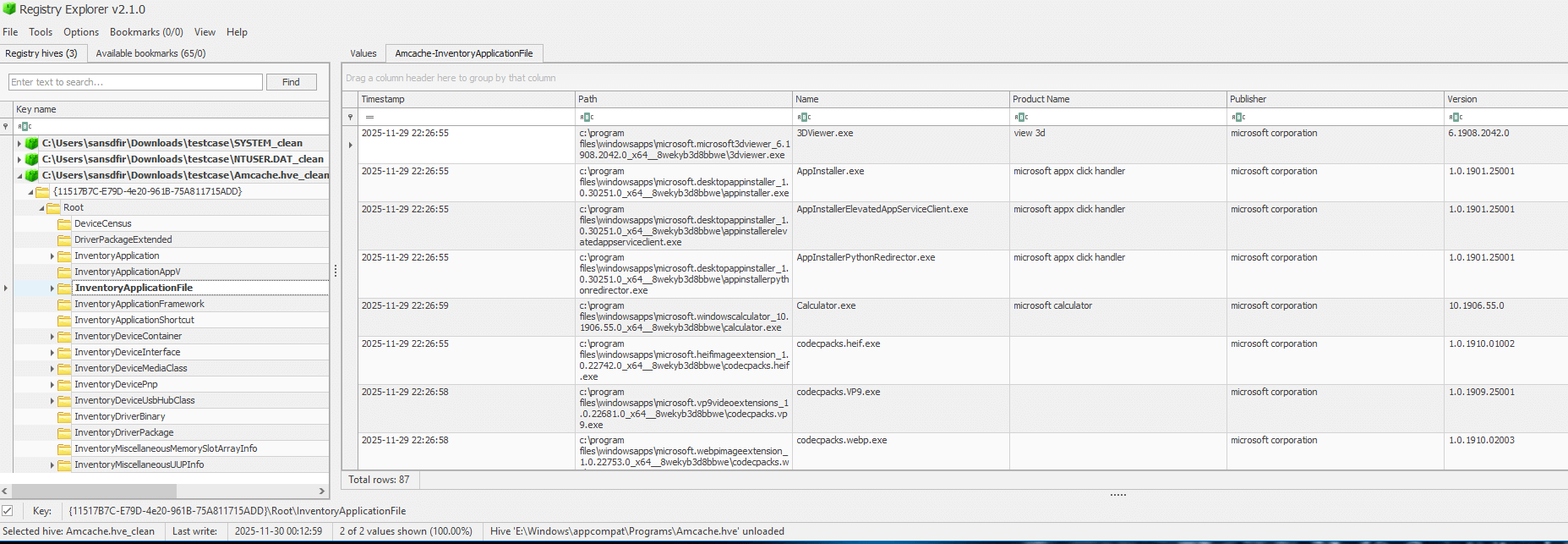
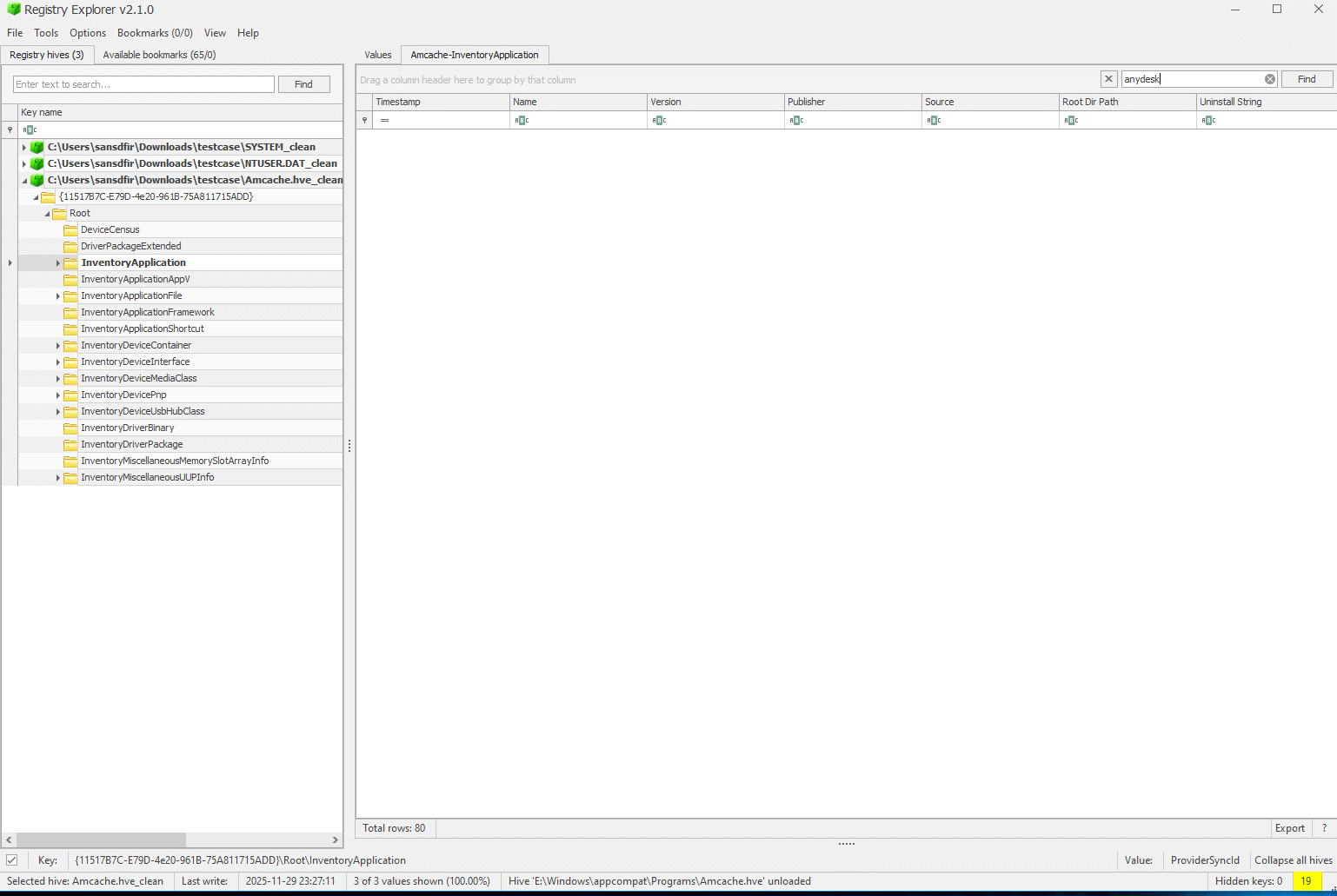
Location: C:\Windows\AppCompat\Programs\AmCache.hve
Why: Records program installations and first executions, including full path, SHA-1 hash, and timestamps. Great for confirming if AnyDesk was executed or just downloaded.
Tool: AmCacheParser or Registry Explorer
Impact: Often survives anti-forensics better than prefetch.
Additional Info: Images show AmCache.hve file selection, loaded hive with no AnyDesk in program IDs or file entries. Only standard Windows apps listed.
PowerShell/Command History
Next, let's look if commands were run in PowerShell. The path below leads to a TXT file of commands run during the session.
File Location: %userprofile%\AppData\Roaming\Microsoft\Windows\PowerShell\PSReadline\ConsoleHost_history.txtAs we visit the file location, we see only commands that were run by the DFIR team. This shows the user didn't run any commands in this session.
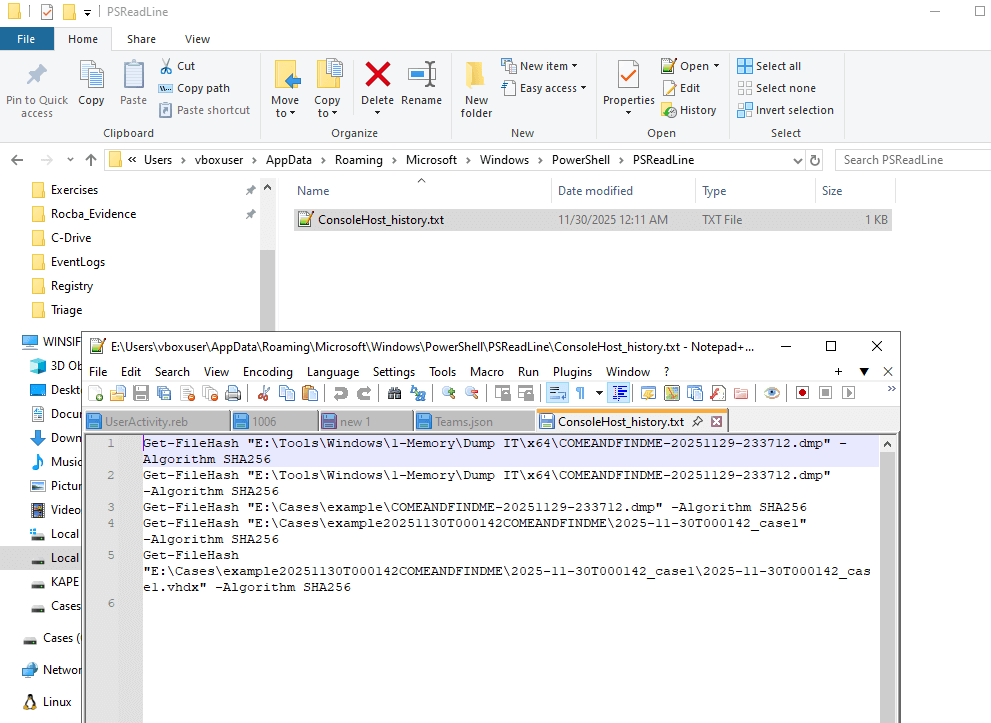
Additional Info: This history persists across sessions unless cleared, making it valuable for detecting scripted actions or exfiltration attempts. Absence here suggests no CLI-based activity by the user. The image shows commands like Get-FileHash on triage and logical images.
SRUM (System Resource Usage Monitor)
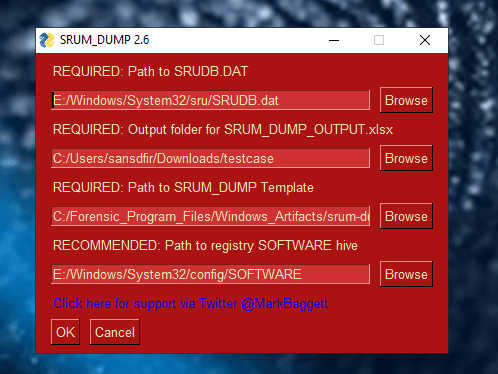
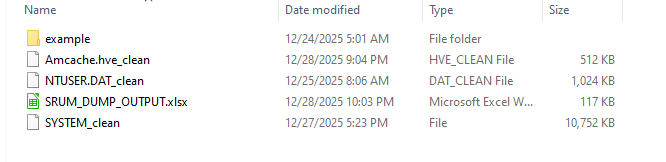
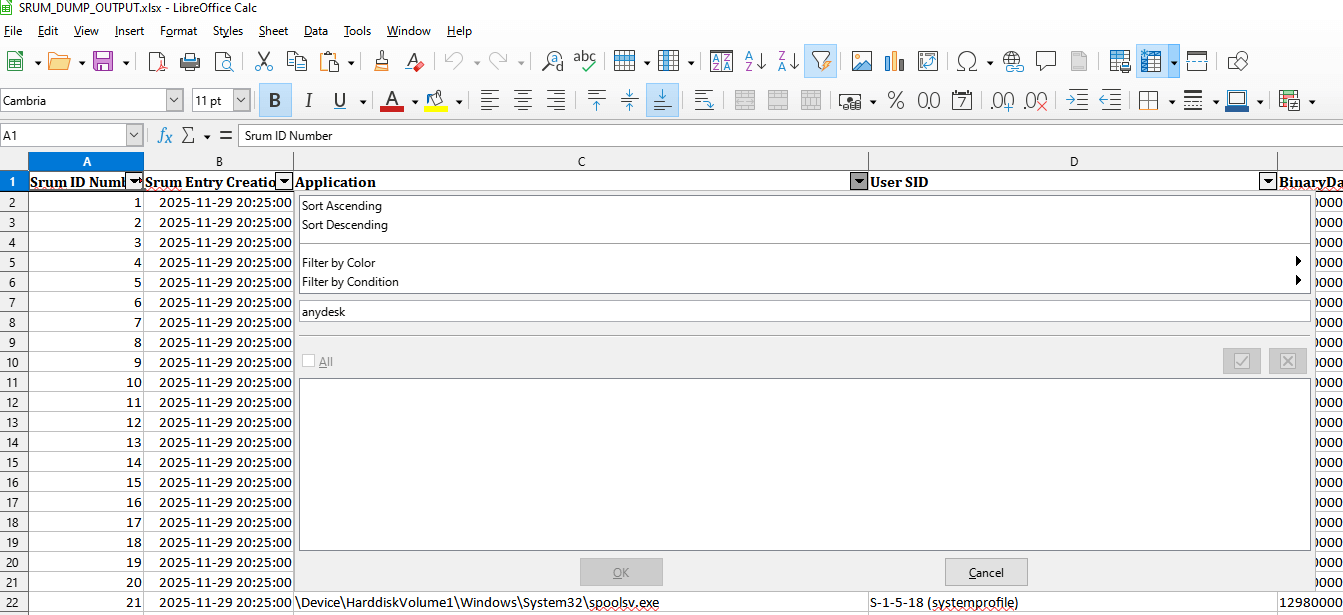
Here we use srum_dump to parse the SRUM dat file into an Excel. Once we have output, I searched in the app column for AnyDesk and showed no results.
Location: C:\Windows\System32\sru\SRUDB.dat
Why: Tracks application network usage (bytes sent/received per executable). If AnyDesk connected out, you'd see network activity tied to the EXE.
Tool: SRUM-Dump or SrumECmd
Impact: Could show actual data transfer (exfiltration) via AnyDesk—even if briefly.
Additional Info: The images show SRUM Dump configuration with paths to SRUDB.dat, output folder, template, and SOFTWARE hive. Output files generated, and Excel sheet with no AnyDesk in application network usage, confirming no network activity from it.
Registry Analysis: Recent Documents and MRU
Exploring NTUSER.DAT for recent docs, MRU (Most Recently Used), and file openings.
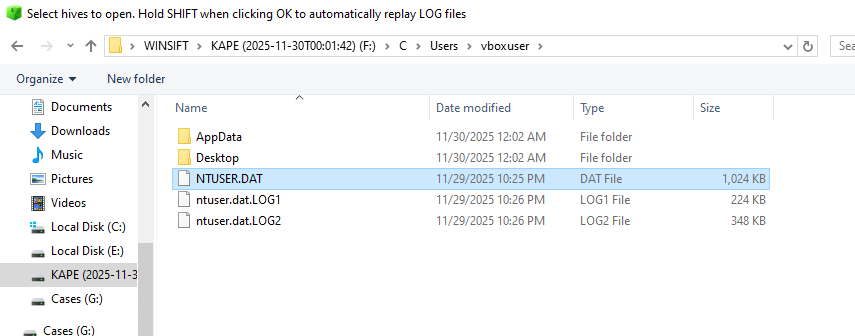
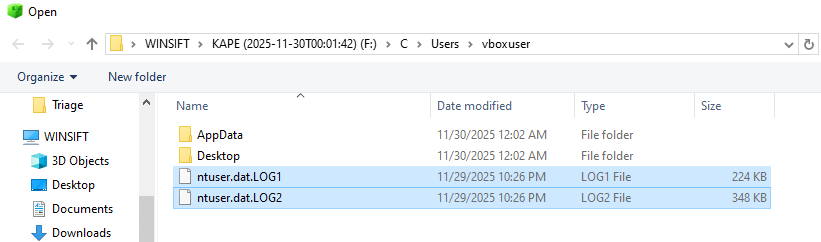
Here we load the NTUSER hive and clean it with transaction logs.
First, we look at recent documents interacted with. We see several .LNK files, which are link files evidencing folders and files that have been interacted with. Several are from the responders, but none raise concern. Use the timeline to filter files based on when responders were collecting.
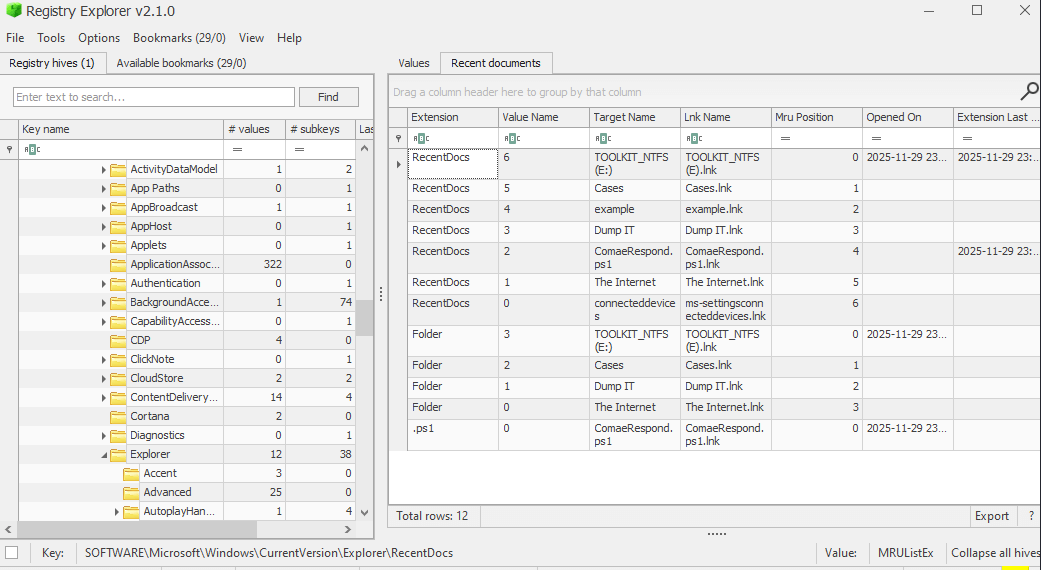
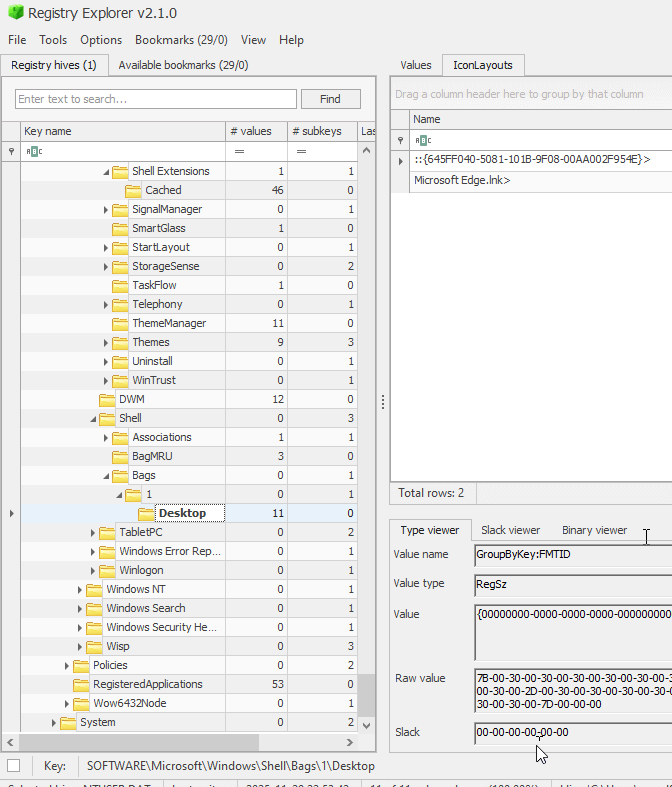
Nothing of concern in recent docs—only one PS1 file associated with DFIR responders.
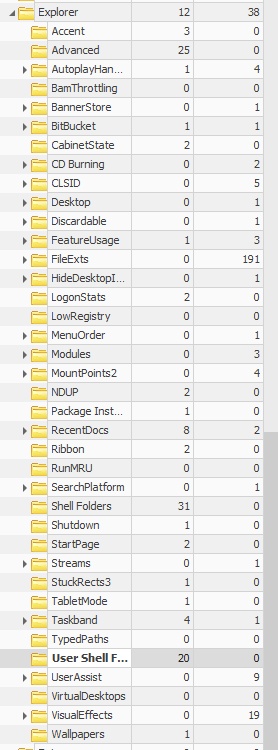
If we look at all subkeys, we see very few artifacts on the machine, such as no RunMRU entries.
Additional Info: RecentDocs key (Software\Microsoft\Windows\CurrentVersion\Explorer\RecentDocs) tracks opened files by extension. MRU lists like OpenSaveMRU show file dialogs. Sparse entries here indicate minimal user activity beyond browsing/downloads. Images show .LNK for Dump It, KAPE, etc., but no suspicious files.
Event Logs Analysis
Next, look at event codes to track any other logins and logoffs from the user or others that may have had remote access. Load files from E:\Windows\System32\winevt\Logs and grab the Security event logs.
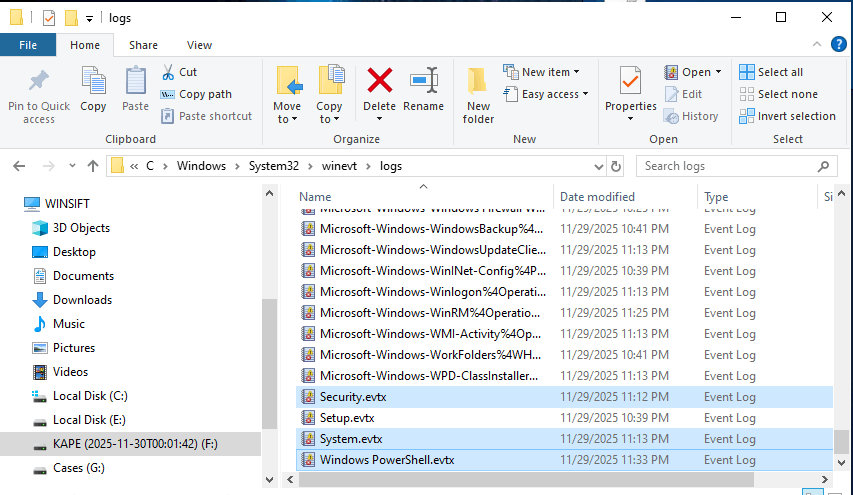
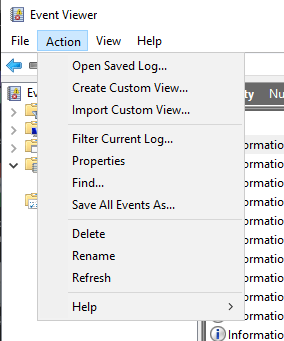
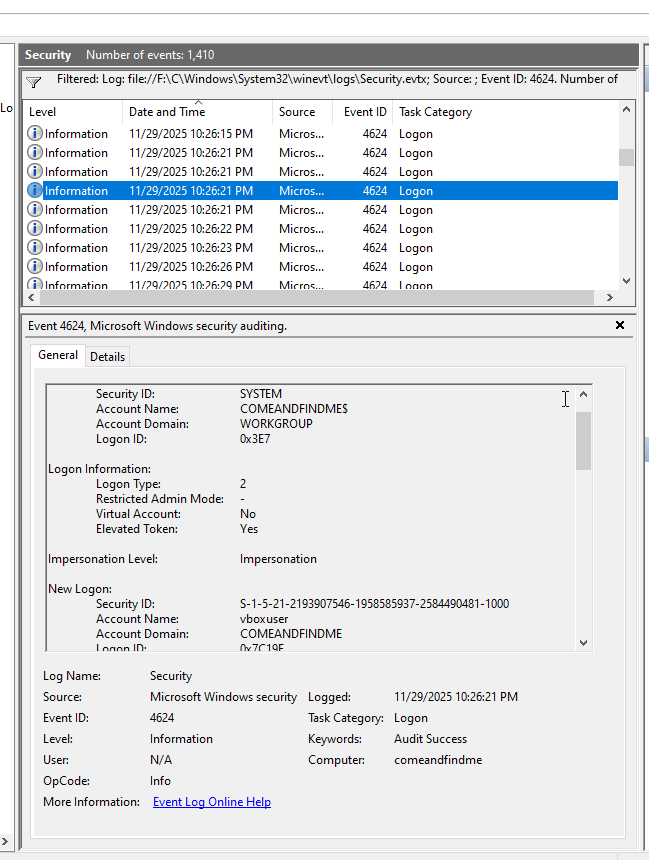
Of note, we had over 20+ 4624 logins from local and system accounts for services prior to the first login. This is interesting—several logins are done by Windows OS as it boots up.
We look for 4647 (user-initiated logoffs) and 4634 (actual session ends from shutdown). We don't find any, which tells us that the responders were able to grab the machine prior to the user shutting it off.
Additional Info: Event ID 4624 indicates successful logons (e.g., Type 3 for network, Type 10 for remote interactive). Absence of remote logons (e.g., from AnyDesk) confirms no execution. Boot-time logons are normal for services but can mask anomalies if not deconflicted. Images show 4624 events for system accounts like SYSTEM, COMEANDFINDME\WORKGROUP, and details of a logon event.
Summary of Findings
From what we have investigated, we can say that the user did have suspicious internet visits on Edge that should be reported to investigators, as well as his successful download of the RMM tool AnyDesk—but he was not able to execute the file; it was only a download. We can also see from a quick look that he did not run any commands from a shell and that he did not interact with any files on the machine that showed concern or suspicion.
All evidence should be reported as found, and we let the prosecutor paint the picture. We must remember we speak in facts from what we find, not to paint a narrative on what we think happened or weigh judgment—we are the collectors and fact finders.
Final Notes & Best Practices
- Always document every single action, including timestamps and tools used.
- Never work on originals — only verified copies.
- Hash everything, verify everything.
- When in doubt → do less, document more.
- Deconflict investigator actions from user actions using timelines.
- Expand analysis to other artifacts like $MFT/$UsnJrnl for file timelines, Jump Lists, ShellBags if needed.
Forensics Blog Collection
Quickly navigate through different sections of the forensic blog collection:
Happy hunting!